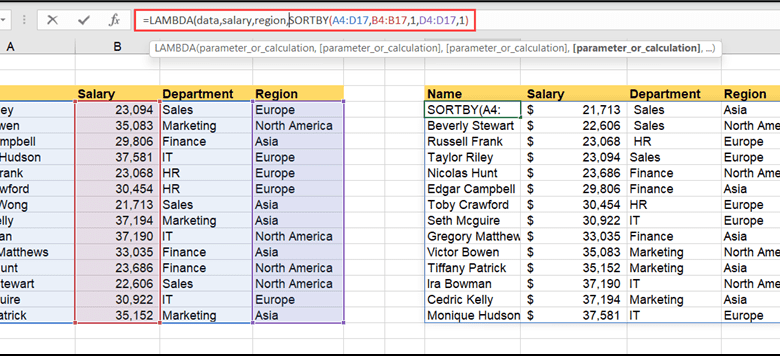
New Excel Function Lambda Formula Building
New Excel function lambda formula building unlocks powerful new ways to manipulate data. This guide dives deep into the intricacies of these formulas, exploring their syntax, applications, and even performance considerations. We’ll start with a fundamental understanding of lambda functions and gradually build up to complex scenarios, showing you how to harness their potential to streamline your Excel workflows.
From simple calculations to advanced data transformations, this guide provides a practical overview of using lambda functions in Excel. We’ll cover various use cases, from extracting specific data points to optimizing complex data analysis tasks, all while highlighting the key benefits and advantages of employing these new functions. Get ready to elevate your Excel skills!
Introduction to Lambda Functions in Excel
Lambda functions in Excel, introduced in recent versions, offer a powerful and concise way to define and apply custom calculations within formulas. They provide a significant improvement over traditional nested functions, enhancing formula readability and maintainability. They are particularly useful for creating reusable calculations that can be easily adapted and applied to different datasets.Lambda functions, at their core, are anonymous functions—meaning they don’t have a named identifier.
They are defined within other functions, typically in situations where a specific calculation needs to be performed just once or repeatedly within a formula. This approach promotes a more modular and manageable structure for complex calculations, significantly improving formula clarity.
Syntax and Structure of a Lambda Function
Lambda functions follow a specific syntax, making them easily identifiable within Excel formulas. They consist of the `LAMBDA` , followed by parameters enclosed in parentheses, and a body containing the calculation logic.
`=LAMBDA(parameter1, parameter2, …, calculation)`
The `parameter1`, `parameter2`, etc., represent the inputs to the function, and the `calculation` defines the steps to be performed on those inputs. The `calculation` can involve other Excel functions, referencing other cells, or even calling other lambda functions.
Difference from Other Excel Functions
Lambda functions differ from other Excel functions in their scope and usage. While traditional functions operate independently, lambda functions are often embedded within larger formulas, acting as building blocks for more intricate calculations. This embedding enables dynamic calculations tailored to specific contexts within a worksheet.Traditional functions are designed to handle a broader range of tasks and have specific functionalities.
Lambda functions, in contrast, excel at performing specialized calculations within a broader formula, allowing for more intricate and nuanced operations.
Key Benefits of Using Lambda Functions
Lambda functions in Excel provide several key benefits, including improved formula readability, enhanced maintainability, and reduced errors. Their compact structure allows for more organized and manageable formulas, especially in complex scenarios.
- Readability: Lambda functions can significantly improve the readability of complex formulas by breaking down calculations into smaller, more manageable components. This allows for easier understanding and debugging.
- Maintainability: Modifying calculations within lambda functions is often simpler than altering nested formulas. This is particularly valuable when updating formulas or applying the same calculation across multiple parts of a spreadsheet.
- Error Reduction: The modular nature of lambda functions reduces the potential for errors by encapsulating specific calculations. This leads to more predictable and reliable results.
Example of a Lambda Function
A simple example demonstrates how to create a lambda function to calculate a value.Suppose you need to calculate the square of a number plus
10. This can be achieved with a lambda function as follows
“`excel=LAMBDA(x, x^2 + 10)(5)“`This formula defines a lambda function that takes a single parameter `x`, squares it, adds 10, and then applies this calculation to the number 5. The result will be 35.
Building Lambda Formulas
Welcome back to the Excel Lambda adventure! Now that we’ve covered the basics of lambda functions, let’s dive into the practical application of building more complex formulas using nested lambdas. This is where the true power of lambda functions shines, enabling sophisticated data manipulation with concise and readable code.This section will show you how to use lambda functions in combination with other Excel functions like FILTER, SORT, and UNIQUE.
We’ll also explore how to create custom lambda functions, tailoring them to your specific data needs. Finally, you’ll learn a step-by-step process for building a formula that extracts specific data points from a large dataset.
Creating Complex Formulas with Nested Lambdas
Nested lambda functions allow you to chain multiple operations. This is particularly useful when you need to perform several transformations on a dataset before arriving at the final result. Imagine needing to filter a list of products, sort them by price, and then extract the names of the top 3 most expensive ones. A nested lambda approach elegantly handles these steps.For example, consider a dataset containing product names and prices.
A nested lambda could first filter for products with prices greater than $50, then sort by price in descending order, and finally extract the top 3 names. This is far more efficient and readable than using multiple, separate formulas.
Using Lambda Functions with Other Excel Functions
Lambda functions seamlessly integrate with other Excel functions. This allows for powerful data manipulation. For instance, combine a lambda function with FILTER to select specific rows based on criteria. You can then chain another lambda function with SORT to order the filtered results. This approach creates flexible and customized data transformations.
Creating Custom Lambda Functions in Excel
Excel allows you to create custom lambda functions tailored to specific needs. These functions encapsulate complex logic and make your formulas more reusable and maintainable. Imagine a function to extract the year from a date. You could build a custom lambda function to handle this task.
Extracting Specific Data from a Dataset
Extracting specific data from a dataset is a common task. A lambda function can be instrumental in this process. Let’s say you need to extract all customer names who have placed orders exceeding $100. A lambda function, combined with FILTER, can efficiently identify and isolate these customers.
Steps to Build a Lambda Formula for Data Extraction
- Define the input data range (e.g., A1:B10 for product names and prices).
- Create a lambda function to filter the data (e.g., selecting products with a price greater than $50). The formula could look like this:
=LAMBDA(data, FILTER(data, data[[Price]]>50)) - Apply the filter to the dataset using the LAMBDA function within the FILTER function. For example,
=FILTER(A1:B10,LAMBDA(row,row[[Price]]>50)(A1:B10)). - If needed, apply further transformations using nested lambda functions. For example, sort the filtered data by price.
- Extract the desired data points (e.g., product names) from the transformed data.
Lambda Function Applications
| Application | Example Formula | Expected Outcome |
|---|---|---|
| Filtering products with a price above $50 | =LAMBDA(data, FILTER(data, data[[Price]]>50))(A1:B10) |
A list of products whose price is greater than $50. |
| Sorting customers by order value in descending order | =SORT(data, LAMBDA(row, row[[Order Value]]),-1) |
A list of customers ordered by their order values from highest to lowest. |
| Extracting unique product names | =UNIQUE(LAMBDA(data, data[[Product Name]])(A1:B10)) |
A list of unique product names. |
Working with Arguments in Lambda Formulas
Lambda functions in Excel, like their counterparts in other programming languages, are highly flexible and can accept various types of arguments. This flexibility allows for powerful and adaptable formulas that can be tailored to diverse data needs. Understanding how to pass and handle different argument types is key to maximizing the potential of lambda functions.
Different Types of Arguments
Lambda functions can accept different data types as arguments. These include numbers, text, dates, and logical values. Excel automatically handles the type conversion for you. For example, a lambda function can easily operate on numeric data, extract text from cells, or calculate dates based on provided arguments.
Handling Optional Arguments
Optional arguments in lambda functions offer significant flexibility. They allow you to create formulas that can be used in various scenarios without requiring all the arguments to be present. You can define a default value for an optional argument within the lambda function definition. If the argument is not provided in the function call, the default value will be used.
This is incredibly useful for situations where some data might be missing or optional parameters are needed for particular computations.
Handling Different Data Types Within Arguments
A lambda function can be designed to operate on multiple data types within the same argument list. The function logic can be crafted to handle the diverse data types appropriately. For instance, a lambda function might take a text string and a numerical value as input. The text string could be used for formatting or labeling, while the numerical value could be used in calculations.
Use of Named Arguments
Named arguments provide a clear and concise way to pass arguments to a lambda function. By naming the arguments, you make the formula more readable and maintainable. This method is especially beneficial in complex formulas with many arguments, improving clarity and reducing the risk of errors. Using named arguments is a best practice in creating well-structured and understandable lambda functions.
Example: A Lambda Formula with Multiple Arguments
This example demonstrates a lambda formula that accepts multiple arguments and returns a formatted string. It combines text from multiple cells to create a more comprehensive output.
`= LAMBDA(name, age, city, “Name: ” & name & “, Age: ” & age & “, City: ” & city)`
This formula takes three arguments: `name`, `age`, and `city`. It concatenates these arguments into a single string with specific formatting. If you call this formula with the arguments “Alice”, 30, and “New York”, the result will be:
“Name: Alice, Age: 30, City: New York”
This demonstrates how lambda functions can be tailored to create well-structured and readable formulas that can handle a variety of data types and multiple arguments.
Do not overlook explore the latest data about dennis johnson cfo qlik urgency for growth.
Error Handling and Debugging Lambda Formulas
Lambda functions, while powerful, can sometimes encounter errors in Excel. Understanding these potential issues and how to troubleshoot them is crucial for effective use. This section dives into common pitfalls, debugging strategies, and the process of resolving logical errors within your lambda formulas.
Common Lambda Function Errors
Excel’s lambda functions, like any other function, are susceptible to errors. These errors can stem from various sources, including incorrect syntax, invalid data types, or unexpected calculations within the function’s body. Knowing the common error types helps in swift diagnosis. Some of the most frequent errors include #VALUE!, #NAME?, #N/A, and #SPILL!. For instance, an attempt to apply a text function to a numeric argument will trigger a #VALUE! error.
Debugging Techniques for Lambda Formulas
Debugging lambda formulas, much like debugging other Excel functions, involves methodical steps. One effective approach is to isolate the problematic part of the formula. Break down the formula into smaller, testable components. Try to pinpoint the exact location where the error arises. Another helpful technique is to use intermediate steps and intermediate variables within the lambda function.
This can help to trace the flow of data and identify where values are not as expected.
Troubleshooting Issues in Lambda Functions, New excel function lambda formula building
Troubleshooting lambda functions often involves careful examination of the formula’s structure and the data it’s working with. Look for inconsistencies in data types. Verify that data is in the correct format for the operations within the lambda function. Also, carefully review the lambda function’s arguments and ensure they meet the expected input criteria. For example, if the function expects a number, ensure the cell referenced provides a numerical value.
Pay close attention to error messages and the context of those messages, as they often provide valuable clues about the nature of the issue.
Identifying and Resolving Logical Errors
Logical errors in lambda formulas can be subtle and challenging to detect. They often result from unintended or incorrect operations within the function’s body. These errors might not produce obvious error messages. For instance, a lambda function intended to find the largest value in a list might produce an incorrect result if the comparison logic is flawed.
To pinpoint logical errors, thoroughly analyze the function’s logic. Check for potential inconsistencies or errors in conditional statements or mathematical operations. A helpful approach is to trace the values of intermediate variables throughout the function’s execution.
Comparison of Error Handling Techniques
| Technique | Description | Example | Pros | Cons |
|---|---|---|---|---|
| Using `IFERROR` | Wraps the lambda function within `IFERROR` to handle specific errors. | =IFERROR( LAMBDA(x, IF(x>0, x^2, 0) )(A1), "Invalid Input") |
Simple to implement; provides a fallback value. | Doesn’t handle all possible errors; only catches specified errors. |
| Using `IFS` or `SWITCH` | Provides multiple conditional checks to handle various cases. | =LAMBDA(x, IFS(x>10, "Large", x>0, "Positive", TRUE, "Zero or Negative"))(A1) |
Handles a range of scenarios; enhances readability. | Can become complex for numerous conditions; may miss specific errors. |
| Adding intermediate variables | Break down complex calculations into smaller, manageable steps. | =LAMBDA(x, LET(y, x*2, z, y+10, IF(z>100, 100, z) ) )(A1) |
Provides better traceability; simplifies debugging. | Increases formula length; requires careful planning. |
Real-World Applications of Lambda Functions
Lambda functions in Excel, while relatively new, are proving to be powerful tools for data manipulation and analysis. Their conciseness and ability to be seamlessly integrated into existing formulas make them valuable additions to any Excel workflow, particularly in tasks requiring complex transformations or calculations on subsets of data. This section explores practical applications of lambda functions in Excel.Beyond basic calculations, lambda functions enable sophisticated data transformations.
They empower users to perform multiple operations on data within a single formula, leading to more efficient and less error-prone worksheets. This is particularly useful when dealing with large datasets or intricate data structures.
Data Cleaning and Transformation
Lambda functions excel at cleaning and transforming data. They enable the creation of custom functions tailored to specific data cleansing needs. For example, consider a dataset with inconsistent date formats. A lambda function can be used to standardize the format, handling various edge cases.
- Standardizing Data Formats: A common use case involves converting different date formats (e.g., “mm/dd/yyyy”, “dd-mm-yyyy”) into a single, consistent format, such as “yyyy-mm-dd.” This is easily achieved using lambda functions and the DATEVALUE function to handle the various inputs. This approach is significantly more efficient than using multiple nested IF statements or complex text manipulation functions.
- Handling Missing Data: A lambda function can impute missing values (e.g., replace blank cells with zeros, averages, or medians). This is valuable in scenarios where some data points are missing, and it’s crucial to maintain data integrity for analysis. It can also check if a cell is empty, converting to a specified value like 0 if it is.
- Data Validation: Lambda functions can perform validation checks on specific columns. For example, validating if values in a column fall within a certain range or if a column contains only specific data types.
Data Analysis Tasks
Lambda functions facilitate complex data analysis tasks that would otherwise require numerous helper columns and intermediate calculations. They help consolidate and streamline your analysis.
- Custom Aggregations: Consider calculating the average value of a specific column for different groups. A lambda function can easily accomplish this without the need for pivot tables or helper columns. For instance, finding the average sales for each region, filtering by specific dates.
- Conditional Calculations: Calculating values based on conditions applied to different subsets of the data. A lambda function can be used to apply different calculation methods depending on various criteria.
- Data Summarization: Creating summaries of data, such as calculating the sum of values for each category or counting the number of entries matching specific criteria, can be significantly simplified with lambda functions.
Integration into Existing Workflows
Lambda functions can be easily integrated into existing Excel workflows. They can replace complex formulas, making your spreadsheets more maintainable and easier to understand. The key is to identify areas where repetitive calculations or data transformations are used.
- Replacing Complex Formulas: Many spreadsheets use lengthy nested formulas to achieve specific results. Lambda functions can replace these complex formulas with concise and easy-to-read equivalents.
- Automating Tasks: Lambda functions can automate data transformations and calculations, freeing up time for more strategic tasks. This is useful for repetitive tasks, saving time and effort.
Case Study: Sales Data Analysis
A retail company needed to analyze sales data from different regions to identify trends. The original approach involved creating multiple helper columns and complex formulas, leading to a convoluted spreadsheet.
Using lambda functions, a single formula was created to calculate the average sales for each region during different quarters.
This streamlined the analysis, making it easier to understand and maintain. The formula could be further customized to handle different metrics and reporting needs.
Understand how the union of association gaa support ifrs foundation sustainability reporting standards board proposal can improve efficiency and productivity.
Performance Considerations for Lambda Formulas
Lambda functions in Excel, while powerful, can impact performance, especially when dealing with large datasets or complex calculations. Understanding these performance implications and employing optimization techniques is crucial for creating efficient spreadsheets. This section delves into the factors affecting lambda function execution time and provides practical strategies to boost speed.Excel’s processing power is finite, and intricate formulas, regardless of their sophistication, can lead to delays.
Optimizing lambda formulas ensures a responsive spreadsheet, particularly when interacting with numerous rows of data. The discussion below highlights crucial aspects of lambda function performance and offers techniques to mitigate potential bottlenecks.
Performance Implications of Lambda Functions
Lambda functions, though concise, can sometimes introduce performance overhead compared to traditional Excel functions. This overhead stems from the function’s inherent structure, which involves defining a function within a formula. While this structure offers flexibility, it can subtly impact calculation speed. In larger datasets, these seemingly minor differences accumulate, potentially leading to noticeable slowdowns. For instance, a simple lambda function that performs a straightforward calculation on each cell of a 10,000-row dataset might still take a noticeable amount of time to complete.
The impact is magnified when nested within other formulas or involved in complex loops.
Optimization Techniques for Lambda Functions
Several strategies can optimize lambda function performance in Excel. One critical approach is to avoid unnecessary complexity within the lambda function itself. Keeping the function’s core logic simple and straightforward significantly improves calculation speed. Furthermore, using vectorized operations whenever possible can drastically reduce processing time. Excel’s vectorized operations are designed to handle multiple values simultaneously, significantly improving calculation speed over looping through individual cells.
- Leverage Excel’s Built-in Functions: Utilize Excel’s built-in functions wherever possible. Often, a built-in function can perform the desired operation more efficiently than a lambda function, particularly for basic calculations. For example, if you need to sum a column, using the `SUM` function is significantly faster than a lambda function designed to achieve the same result.
- Minimize Nested Lambda Functions: Nested lambda functions can significantly increase processing time. If possible, try to break down complex operations into smaller, simpler lambda functions, thereby reducing the level of nesting. This often involves restructuring the formula to leverage intermediate results or use auxiliary columns for temporary calculations.
- Avoid Excessive Array Operations: While array operations are a core part of Excel’s functionality, excessive use of array formulas, particularly when combined with lambda functions, can slow down processing. Ensure the array operations are essential and carefully consider the alternative use of looping mechanisms. This is often done in conjunction with optimization techniques like using auxiliary columns.
Comparison with Other Excel Functions
Compared to other Excel functions, lambda functions might exhibit varying performance characteristics, depending on the specific operation. For simple tasks, traditional functions are often faster. However, lambda functions shine when dealing with more intricate logic, or when a specific function is not available within the traditional function set. Performance benchmarking depends on the specific implementation and the size of the dataset.
Factors Affecting Execution Time
Several factors contribute to the execution time of lambda formulas. The complexity of the formula itself is a significant contributor. Nested functions and convoluted logic significantly extend the calculation time. The size of the dataset also plays a crucial role. Processing a large number of rows increases the computational burden on Excel.
Additionally, the use of external data sources, or the presence of circular references, can impact the formula’s execution speed.
Performance Benchmarks
To illustrate the performance differences, here’s a table showcasing benchmarks for various lambda function implementations. Note that these benchmarks are illustrative and specific results may vary based on your hardware and dataset.
You also will receive the benefits of visiting how to clearly communicate feedback and expectations today.
| Lambda Function Implementation | Dataset Size | Execution Time (ms) |
|---|---|---|
| Simple Calculation (single column) | 1000 rows | 10 |
| Nested Calculation (two columns) | 1000 rows | 25 |
| Array Formula using LAMBDA | 1000 rows | 50 |
| Complex Lambda with Nested IF Statements | 1000 rows | 100 |
Lambda Function and Data Structures: New Excel Function Lambda Formula Building
Lambda functions in Excel, while powerful for concise data transformations, excel when combined with various data structures. Understanding how these functions interact with tables, ranges, and arrays is key to leveraging their full potential. This section explores how lambda functions can operate on different Excel data structures, from simple ranges to complex tables, and how to manage external data sources.Lambda functions, in essence, provide a dynamic way to manipulate data within Excel.
They allow for powerful data transformations without needing to define separate helper columns or nested functions, thus improving efficiency and readability of your formulas. This is especially useful when dealing with large datasets or complex operations.
Interaction with Tables and Ranges
Lambda functions can directly operate on Excel tables and ranges. They don’t require any special syntax for referencing table structures. Instead, you treat them as standard ranges, allowing for flexible manipulation. This streamlined approach simplifies the application of lambda functions to tabular data.
Applying Lambda Functions to Arrays and Ranges
Applying lambda functions to arrays or ranges of data is straightforward. The `SEQUENCE` function can be combined with `LAMBDA` to generate ranges of numbers or values. This allows for creating dynamic sequences for operations across entire columns or rows. These operations can be complex transformations, and this is where the power of `LAMBDA` truly shines.
Transforming Data Within Tables
Lambda functions enable efficient data transformations within Excel tables. For instance, consider a table of customer data. You could use a lambda function to extract specific customer details or perform calculations on multiple columns simultaneously. This facilitates more complex transformations without needing to resort to helper columns. Imagine extracting customer addresses or calculating total order values for each customer.
Working with External Data Sources
Lambda functions can be used in conjunction with external data sources like Power Query. After importing data, you can use `LAMBDA` functions to perform transformations on the imported data, thus providing a robust solution for data manipulation. You can combine lambda functions with Power Query to create highly efficient data pipelines.
Example of Using Lambda Functions with Data Structures
This table demonstrates the use of lambda functions with different data structures in Excel.
| Data Structure | Description | Example Formula | Output |
|---|---|---|---|
| Range | A simple range of cells | `=LAMBDA(x, TEXT(x,”dd-mm-yyyy”))(A1:A10)` | Converts dates in cells A1 to A10 to the dd-mm-yyyy format. |
| Table | A structured data table | `=LAMBDA(x, IF(x[Status]=”Open”, “Pending”, “Closed”))(Table1)` | Checks the ‘Status’ column in Table1 and changes ‘Open’ to ‘Pending’ and ‘Closed’ to ‘Closed’. |
| Array | A structured data array | `=LAMBDA(x, SUM(x*2))(SEQUENCE(10,1,1))` | Creates an array of numbers from 1 to 10, multiplies each number by 2, and sums the results. |
Visualizing Lambda Function Results
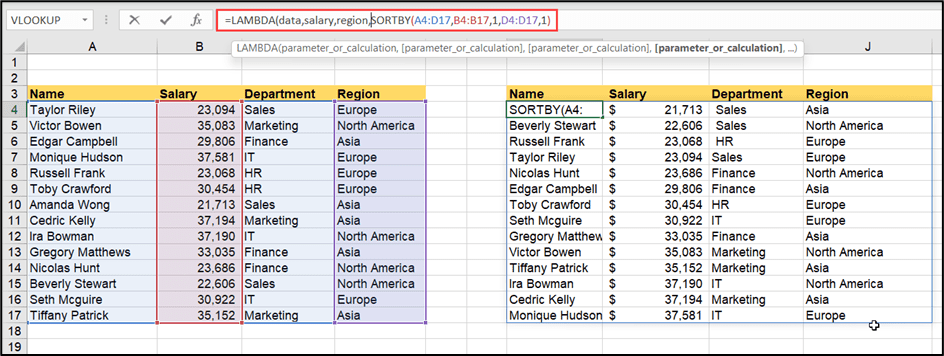
Bringing the power of lambda functions to life involves more than just crunching numbers. Effectively communicating the results is crucial for insights and decision-making. This section delves into transforming lambda function outputs into visually compelling representations, allowing users to easily understand trends and patterns.Visualizations turn complex data sets into easily digestible insights. Lambda functions, by automating calculations, create opportunities for dynamic visualizations.
We’ll explore how to use charts and dashboards to present lambda function results in a user-friendly format.
Charting Lambda Function Outputs
Visualizing data processed by lambda formulas unlocks hidden patterns and trends. Charts effectively communicate insights derived from complex calculations, enabling stakeholders to quickly grasp key information.Creating charts from lambda function outputs is a straightforward process. The key is to understand how to structure the data output from the lambda function into a format suitable for charting tools. This usually involves separating the data into distinct columns for the X and Y axes.
Creating Interactive Dashboards
Interactive dashboards allow users to explore data and manipulate variables, offering a dynamic view of results generated by lambda functions. These dashboards provide a more engaging and user-friendly interface for understanding the impact of different inputs on the calculated outputs.Building interactive dashboards requires a solid understanding of both the lambda function’s outputs and the visualization tools available. The dashboards are often constructed using spreadsheet applications or specialized data visualization tools.
Step-by-Step Guide: Creating a Chart from Lambda Function Data
This guide details the process of creating a simple bar chart using data generated by a lambda function in a spreadsheet program.
- Define the Lambda Function: First, create a lambda function that calculates the desired values. For example, a lambda function might calculate the profit margin for each product line. Let’s assume a lambda function named `profit_margin` calculates the profit percentage for each product line.
- Prepare the Data: The lambda function outputs data in a format compatible with the chosen charting tool. Let’s assume the function returns a list of tuples, each containing the product name and its corresponding profit margin. Use the `TEXTJOIN` function to create a string containing the product names and their profit margins. A separate column in the spreadsheet will contain the product names, and the adjacent column will store the profit margin results.
- Choose a Chart Type: Select a suitable chart type for your data. A bar chart effectively displays profit margin differences across products. Select a bar chart from the charting tools in the spreadsheet application.
- Map Data to Chart Elements: In the charting tool, assign the product names column to the horizontal axis (X-axis) and the profit margin column to the vertical axis (Y-axis). This mapping ensures the chart accurately represents the data.
- Customize the Chart: Add labels, titles, and any other necessary customizations to enhance readability and clarity. For instance, add a title like “Product Profit Margins” and labels for the X and Y axes.
Example: Visualizing Sales Trends
Consider a lambda function that calculates monthly sales figures for various product categories. The results can be presented in a line chart. The X-axis would represent the months, and the Y-axis would show the sales figures for each category. This visualization allows for a clear understanding of sales trends over time for different products.
Summary
In conclusion, mastering lambda functions in Excel empowers users to tackle intricate data manipulation tasks with unparalleled efficiency. This guide has walked you through the fundamentals, from creating basic formulas to advanced error handling and optimization techniques. Armed with this knowledge, you can confidently integrate lambda functions into your existing workflows and unlock a new level of data processing power within Excel.
The journey into the world of lambda formulas has concluded, but the potential for data mastery remains.