The rapid evolution of Artificial Intelligence (AI) within the business-to-business (B2B) sector has brought forth a complex array of challenges, with pricing emerging as a particularly thorny issue. While the technological prowess to develop sophisticated AI solutions is advancing at an unprecedented pace, the strategies and infrastructure for monetizing these innovations are struggling to keep up. This disconnect is forcing a fundamental reevaluation of traditional B2B pricing models, pushing companies away from the long-standing per-seat subscription and towards more dynamic, usage-based, and outcome-driven approaches. However, the legacy systems designed for a static pricing world are proving to be significant bottlenecks, hindering the agility required to adapt to this new paradigm.
This challenging landscape has positioned Nue, a platform designed to address these evolving monetization needs, as a focal point for businesses navigating the complexities of AI pricing. The core of the problem lies in the fundamental shift in how AI delivers value. Unlike traditional software where a human user was the direct beneficiary and thus the unit of measurement, AI often operates as an autonomous agent, performing tasks previously handled by individuals. Consequently, a per-seat model, where a fixed price is charged for each user license, becomes increasingly anachronistic and potentially misaligned with the actual value generated.
The Unraveling of Per-Seat Pricing in the AI Era
For decades, the B2B software landscape has largely operated on a per-seat pricing model. This straightforward approach allowed companies to forecast revenue with relative certainty and provided a clear metric for sales teams to communicate value to prospective clients. However, the advent of powerful AI tools, particularly those that automate tasks or provide generative capabilities, renders this model obsolete. When an AI solution can effectively replace the need for multiple human seats by performing the equivalent work, charging on a per-seat basis becomes illogical and unsustainable. Businesses will inevitably recognize the economic inefficiency and seek alternatives that more accurately reflect the service consumed.
This realization is propelling a significant industry-wide migration. B2B AI companies are actively exploring and implementing a spectrum of alternative pricing strategies. These include:
- Usage-Based Pricing: Charging customers based on the actual amount of resources consumed, such as API calls, data processed, or compute time utilized.
- Consumption-Based Pricing: Similar to usage-based, this model focuses on the quantity of a specific service or feature used.
- Credit Systems: Offering pre-purchased bundles of credits that can be redeemed for various AI functionalities, allowing for granular control and flexibility.
- Outcome-Based Pricing: Tying the cost of the AI solution directly to the tangible business outcomes it delivers, such as cost savings, revenue increases, or efficiency gains.
While the conceptual shift in pricing models is relatively straightforward, the operational execution is where the real difficulty lies. The quote-to-revenue infrastructure that most B2B companies currently rely on was architected for a world where pricing was a set-it-and-forget-it affair, often locked in for years. These systems, encompassing Configure, Price, Quote (CPQ) tools, billing engines, and revenue recognition software, were built to handle static, predictable subscription models. Introducing dynamic pricing, where models can change quarterly or even more frequently, requires a complete overhaul of these deeply entrenched systems.
Nue: Bridging the Gap in Monetization Infrastructure
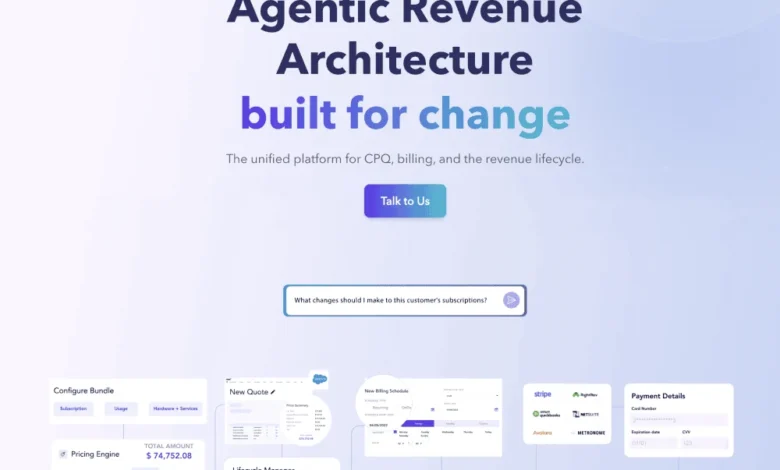
Nue is emerging as a critical solution designed to bridge this operational chasm. The platform aims to provide a centralized system of record that empowers B2B AI companies to not only launch new pricing models but also to iterate on them, meter consumption accurately, and bill customers seamlessly without the need for costly and time-consuming rebuilding of their entire quote-to-revenue stack. In essence, Nue is engineered for the very agility that the AI era demands in monetization.
The problem Nue is fundamentally solving can be illustrated by examining the typical B2B AI company’s existing financial infrastructure. Often, this stack is a fragmented collection of disparate tools:
- CPQ Tools: Primarily designed for sales teams to configure product options and generate quotes, but often struggle with complex, variable pricing.
- Billing Engines: Responsible for invoicing customers, but can be cumbersome when dealing with usage data or non-standard billing cycles.
- Metering Layers: Tools that track actual product usage, but these might be siloed and not directly integrated with sales or finance.
- Revenue Recognition Software: Used by finance departments to ensure compliance with accounting standards, but this often relies on data that is difficult to extract and reconcile from other systems.
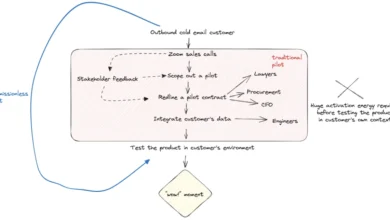
When a company decides to experiment with a new pricing strategy – perhaps a hybrid model combining a base subscription with usage-based fees, or a per-agent pricing structure – these fragmented systems create significant friction. Sales teams may find it impossible to accurately quote the new deal structure. The billing department might require extensive manual intervention to generate invoices that reflect actual consumption. Finance teams could face a protracted process of reconciling data from multiple sources to recognize revenue correctly. Furthermore, gaining clear visibility into which pricing model is most effective at driving revenue becomes a Herculean task due to this data fragmentation.
For companies that recognize the imperative to iterate on their pricing models frequently, a common practice in the fast-moving AI sector, this legacy stack becomes a significant bottleneck. The innovative pricing idea may be simple, but implementing it through existing, inflexible systems is the true challenge.
The Differentiator: Unifying the Quote-to-Revenue Lifecycle
Nue’s core proposition is that the problem wasn’t in individual pricing components, but rather in the "seams" between them – the points where data had to be transferred, translated, and reconciled. By collapsing these disparate functions into a unified platform, Nue aims to eliminate the operational drag associated with evolving pricing.
This unification offers several key advantages:
- Agility in Pricing: The ability to quickly design, test, and deploy new pricing models without extensive engineering resources.
- Accurate Metering and Billing: Real-time tracking of consumption and usage, enabling precise billing that reflects customer value.
- Streamlined Revenue Recognition: Integrated data flows that simplify financial reporting and ensure compliance.
- Enhanced Visibility: A holistic view of pricing performance, allowing for data-driven optimization.
The Agentic Pricing Debate: A Defining Moment for AI Monetization
The current discourse around "agentic pricing" is arguably the most critical monetization conversation in B2B AI today. This debate directly underpins the necessity for platforms like Nue. As AI agents become more sophisticated and capable of performing complex tasks autonomously, the foundational assumption of human users at keyboards erodes. When an AI product delivers the equivalent output of multiple human employees, continuing to charge on a per-seat basis becomes a misrepresentation of value and a potential point of friction with customers.
This forces a convergence towards pricing models that align with what the AI does or produces. Outcome-based and consumption-based pricing are becoming the de facto standards for capturing the true value generated by these advanced AI systems. However, the operational complexity of these models is a significant hurdle. Accurately metering AI activity, enabling sales teams to confidently quote variable deals, ensuring billing is transparent and acceptable to customers, and satisfying the stringent requirements of auditors for revenue recognition – all these elements demand robust infrastructure. The operational burden is so substantial that many companies, despite acknowledging the theoretical benefits of usage-based pricing, remain tethered to per-seat models simply because their existing infrastructure cannot support the transition. Nue aims to dismantle this barrier, providing the essential infrastructure that connects innovative pricing ideas to actual invoices and revenue.
Target Audience: The AI Companies Driving Innovation
The ideal customer for Nue comprises B2B AI companies that are actively:
- Transitioning away from per-seat pricing: Recognizing the limitations of this model for their AI offerings.
- Implementing or planning hybrid pricing strategies: Combining subscription elements with usage or outcome-based components.
- Iterating on pricing models frequently: Understanding that pricing is an ongoing optimization process in the AI market.
- Struggling with a fragmented quote-to-cash stack: Experiencing operational inefficiencies due to disparate systems.
Usage-based and consumption-driven AI products, in particular, are at the forefront of experiencing and feeling the pain of inadequate pricing infrastructure. These companies are where Nue finds its most natural and immediate fit.
Who Should Consider Waiting
Conversely, companies that are pre-revenue or operate with a single, simple per-seat pricing model and have no immediate plans for modification may not require Nue’s advanced capabilities at this juncture. Revenue infrastructure, while critical for scaling and optimizing monetization, is most valuable when pricing complexity or frequent changes become a reality. Investing in such infrastructure too early, before the need is clearly established, can lead to unnecessary expenditure on a problem that has not yet materialized. The ROI for revenue infrastructure becomes compelling the moment pricing strategies become intricate or begin to evolve rapidly.
Pricing as the New Product: A Competitive Imperative
The traditional approach to product development often saw pricing as a secondary consideration, a tactical decision made after the core product was built. However, in the current B2B AI landscape, this dynamic has inverted. The pricing model itself is becoming a fundamental aspect of the product strategy, directly intertwined with how the AI delivers value and how that value is captured. The ability to rapidly test, adapt, and refine pricing strategies – shifting between consumption, outcomes, and hybrid models to identify the most effective monetization approaches – is rapidly evolving into a significant competitive advantage.
The companies that will define success in the coming years will not only possess superior AI technology but will also master the art of pricing. They will develop pricing models that accurately reflect the value their AI creates and will possess the underlying infrastructure to adapt these models with the same velocity as the market itself. This foundational infrastructure for agile monetization is precisely the domain in which Nue is operating.
Nue is scheduled to be a Gold Partner at the SaaStr AI 2027 conference, taking place from May 11-12. This event provides an opportunity for industry leaders to engage directly with the Nue team, delve into their solutions for AI-era pricing, and discuss their specific quote-to-revenue challenges.
For those aware of innovative AI applications that merit broader recognition, nominations for SaaStr AI App of the Week are actively being accepted. The selection of Nue underscores the growing recognition of pricing infrastructure as a critical enabler for B2B AI companies aiming to thrive in a dynamic and value-driven market. The future of B2B AI success hinges not just on algorithmic brilliance but on the strategic and operational mastery of how that brilliance is monetized.