Unlocking the Hidden Potential of Apple’s Contacts App: Essential Tips and Tricks for iPhone, iPad, and Mac

Apple’s native Contacts application often serves as an unheralded utility within the broader iOS and macOS ecosystems. While millions of users rely on the software daily to store phone numbers, email addresses, and physical locations, the application houses a robust suite of advanced features that frequently go unnoticed. Beyond basic record-keeping, the platform incorporates sophisticated data management tools, streamlined multi-touch gestures, and privacy controls designed to optimize how individuals organize and interact with their personal and professional networks.
The Evolution of Digital Address Books
Historically, digital address books on mobile devices and desktop computers functioned as static repositories. Users manually entered data fields, and maintaining accurate records required tedious administrative effort. Duplicate entries accumulated over years of device migrations, cloud synchronizations, and accidental re-entries.
Apple has systematically addressed these architectural limitations across recent iterations of iOS and macOS. By integrating machine learning algorithms for duplicate detection and introducing multi-platform synchronization via iCloud, the Cupertino-based technology company transformed the digital contact card from a static ledger into an interactive communication hub. Despite these systemic improvements, consumer surveys indicate that a significant percentage of users remain unaware of the application’s more advanced productivity and privacy features, prompting technology experts to compile definitive operational guides.

Managing and Eliminating Duplicate Entries
One of the most persistent issues in digital address book management is the accumulation of duplicate entries. These redundancies typically occur when users import vCards from alternative email providers, sync multiple accounts—such as corporate Exchange servers and personal iCloud storage—or manually recreate contacts after forgetting existing records.
On iOS, the operating system automates a portion of this cleanup process by placing a notification prompt at the head of the contact directory whenever duplicate cards are detected. Users can tap this notification to automatically merge identical records.
For users operating within the macOS environment, the application provides granular manual control. By opening the Contacts application on a Mac and navigating to the Card menu in the top menu bar, users can select the "Look for Duplicates" command. The software scans the database for matching names, phone numbers, and email addresses, presenting a streamlined interface that allows administrators to merge records selectively without risking data loss.
Advanced Multi-Selection and Bulk Operations
Executing batch operations on mobile devices has historically presented UI challenges due to screen real estate limitations. While desktop operating systems utilize standard modifier keys—such as holding the Shift or Command keys while clicking with a mouse—mobile platforms require alternative input methods.

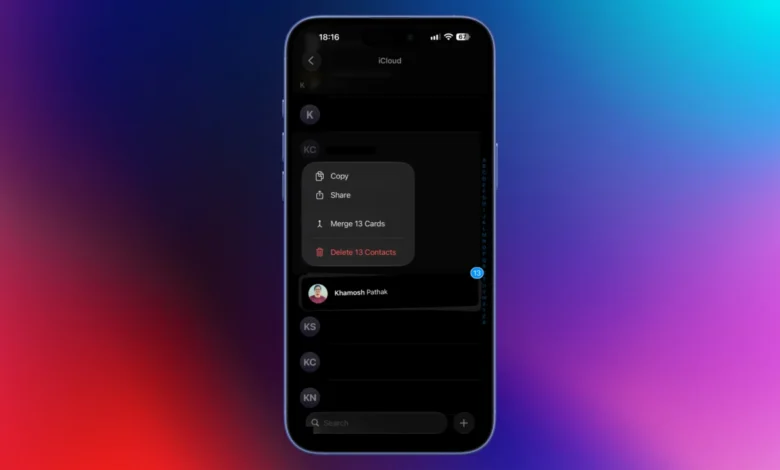
Apple resolves this within iPadOS and iOS by incorporating a dedicated multi-touch gesture. By placing two fingers on the contact list and swiping upward or downward, users can rapidly highlight multiple adjacent contacts. Once the initial batch is selected, users can continue scrolling and maintain the gesture to aggregate further entries.
This gesture unlocks efficient bulk actions, including mass deletion and group sharing. For instance, users looking to purge outdated professional connections or school-era acquaintances can highlight dozens of records simultaneously, hold down on the selected cluster, and execute a single command to remove the entire batch, bypassing the friction of deleting entries individually.
Privacy-First Contact Sharing and Data Minimization
In an era of heightened data privacy awareness, sharing a contact card often inadvertently exposes sensitive personal information. A standard Apple contact card can store home addresses, wedding anniversaries, historical nicknames, and immediate family member associations. Transmitting this comprehensive data packet to third parties poses potential privacy vulnerabilities.
While iOS prompts users to edit specific fields before sending a vCard through standard sharing menus, this extra verification step can introduce friction during rapid communication. To streamline this process while maintaining security, users can utilize the native copy-and-paste protocol within the Messages app. By locating a contact, holding down on the entry, selecting "Copy," and pasting the resulting text directly into an iMessage thread, users transmit basic contact details without invoking the full vCard sharing sheet. However, industry analysts note that this workaround is currently restricted to Apple’s native messaging infrastructure and does not natively integrate with cross-platform messaging clients like WhatsApp or Signal.

Integration with Third-Party Communication Ecosystems
Modern communication rarely occurs exclusively over traditional cellular voice networks and SMS protocols. The proliferation of Voice over IP (VoIP) and encrypted messaging applications has fragmented how individuals connect. Apple’s Contacts application bridges this gap by integrating deep links to third-party services directly within individual contact profiles.
By pressing and holding either the call icon or the message icon on a specific contact card within iOS, users unveil a contextual menu displaying all compatible third-party applications linked to that phone number or email address. Supported services typically include WhatsApp, Signal, and Telegram. This functionality eliminates the need to grant third-party applications continuous access to the entire device address book—a common privacy concern—while allowing users to initiate encrypted chats or voice calls directly from the native operating system interface.
Advanced Data Export and Customization on macOS
For enterprise users, system administrators, or individuals executing comprehensive digital backups, macOS offers superior export capabilities compared to its mobile counterpart. Users can export their entire directory by navigating to File > Export > Export vCard. This generates a standardized .vcf file compatible with Google Contacts, Microsoft Outlook, and various customer relationship management (CRM) platforms. Furthermore, macOS allows users to export contact databases directly into PDF format via the File > Export as PDF command, providing a tangible or easily printable directory format.
Additionally, desktop users can tailor the foundational architecture of their contact records. By opening the macOS application and navigating to Card > Add Field > Edit Template, administrators can permanently remove unused data fields—such as phonetic names, maiden names, or secondary physical addresses—from the default creation form, streamlining data entry for future records.

Automated Sorting via Smart Lists
Locating a recently added contact when the individual’s name has been forgotten represents a common administrative hurdle. Standard chronological scrolling through hundreds of entries is inefficient. macOS addresses this operational bottleneck through the implementation of Smart Lists.
By selecting File > New Smart List in the Mac application, users can establish automated filters based on metadata parameters. For example, configuring a rule where the Card "has changed in" the last 10 days generates a dynamic folder containing every contact created or updated within that specific timeframe. This feature proves valuable for sales professionals, recruiters, and administrative personnel who frequently log transient business contacts. Similar logic allows users to group contacts dynamically based on shared company names or organizational affiliations, automating directory organization without requiring manual playlist-style curation.
Managing Digital Identity with NameDrop
Introduced as a flagship privacy and convenience feature in recent iOS updates, NameDrop allows users to exchange contact information simply by bringing two compatible Apple devices into physical proximity. While this mechanism accelerates networking, it also introduces potential vectors for inadvertent data sharing in crowded public spaces.
To mitigate privacy risks during NameDrop interactions, security specialists recommend auditing and optimizing personal contact cards. Users can access their own contact profile at the top of the iOS Contacts app, select the "Edit" button, and redact sensitive personal information they do not wish to broadcast publicly. Furthermore, replacing candid personal photographs with neutral graphic avatars or professional headshots ensures that digital first impressions remain controlled and secure across both personal and professional engagements.