Unlocking the Power User Experience: Essential Vivaldi Browser Features and Advanced Customization Hacks

The modern web browser has evolved far beyond a simple window for viewing web pages; it has become the central operating environment for professional work, personal organization, and digital entertainment. Yet, mainstream choices like Google Chrome, Apple Safari, and Mozilla Firefox often require users to install dozens of third-party extensions to achieve deep customization, robust privacy, and complex window management. Enter Vivaldi, a Chromium-based browser that has quietly spent over a decade refining a different philosophy: building power-user features natively into the software from day one. Developed by Vivaldi Technologies—a company founded by former Opera Software co-founder and CEO Jon von Tetzchner—the browser was officially launched in April 2016 as a spiritual successor to the classic Opera browser. It was engineered specifically for users who demand absolute control over their digital workspace without bloated installation procedures. Recent feature updates have further elevated its status, introducing mobile extension support, granular performance toggles, and advanced automation tools. For users looking to maximize productivity, streamline workflows, and reclaim battery life, mastering Vivaldi’s lesser-known configuration settings and advanced features can fundamentally transform the daily browsing experience.
Enhancing Mobile Privacy with Desktop-Class Extensions on Android
One of the most significant barriers to mobile privacy has been the rigid restriction of browser extensions on mobile operating systems, where dominant players like Chrome for Android entirely block add-on installations. Vivaldi for Android disrupts this paradigm by offering native support for Chrome extensions on mobile hardware. This capability allows privacy-conscious users to deploy robust tracking and advertising defenses directly onto their smartphones and tablets.
By tapping the puzzle-piece icon located directly within the mobile address bar, users can access the Chrome Web Store and install essential tools such as uBlock Origin Lite to systematically block intrusive tracking scripts and aggressive advertisements. Furthermore, privacy experts recommend pairing this setup with Decentraleyes, an extension that emulates content delivery networks locally to prevent tracking networks from mapping user requests across disparate websites. For media consumers, installing SponsorBlock enables automatic skipping of sponsored segments within YouTube videos. This seamless bridge between desktop-class extension architecture and mobile browsing represents a major leap forward for mobile security, offering protection that rivals or exceeds traditional desktop setups.
Isolating Contexts with Workspaces and Tab Management

Digital fatigue often stems from context switching—the cognitive cost of moving between unrelated tasks, such as answering work emails, researching an academic paper, and browsing social media within a chaotic, unified tab bar. Vivaldi addresses this friction through a native feature known as Workspaces, which acts as a categorical filing system for browser tabs. Rather than relying on separate browser profiles or cluttered bookmark folders, users can create discrete, named workspaces that isolate specific projects.
To implement this workflow, users click the Workspaces button located natively in the tab bar, select "New Workspace," and assign a descriptive label—such as "Research," "Long Reads," or "Social Media." Moving open tabs into these isolated environments requires nothing more than a right-click on any active tab, followed by navigating to the "Move > Workspace" submenu. This structural segregation prevents cognitive overload, reduces accidental tab closure, and allows professionals to instantly shift their digital environment from professional obligations to personal leisure with a single click.
Minimizing Context Loss Through Tiled Follower Tabs
Deep-dive research often leads users down digital rabbit holes, where clicking successive hyperlinks quickly buries the original source article beneath a mountain of secondary tabs. Vivaldi mitigates this workflow bottleneck via its innovative "Tiled Follower Tabs" and split-screen viewing capabilities. Instead of opening a link in a new background tab or completely navigating away from the current page, users can run source material and reference links side-by-side within a single window pane.
By right-clicking any hyperlink on a webpage and selecting "Open Link in > Open Link as Tiled Follower Tab," the browser automatically splits the active viewing area, displaying the reference page alongside the original context. This layout allows users to digest supplementary information rapidly and return to the primary narrative without breaking their reading momentum. Additional split-screen options allow for flexible grid layouts, transforming the browser into a dynamic multi-document workstation ideal for journalists, researchers, and financial analysts.
Accelerating Navigation with Quick Commands and Command Chains

For power users who prefer keyboard-driven navigation over tedious mouse movements, Vivaldi offers an advanced command-line utility called Quick Commands. Evoking a functionality similar to macOS Spotlight or Windows PowerToys Run, pressing F2 or Control-E (Command-E on Mac) opens a versatile floating prompt at the top of the browser window. This interface goes far beyond basic URL searching; users can execute math calculations, toggle system statuses, adjust browser settings, or execute administrative commands—such as instantly copying the URLs of all open tabs to the system clipboard—entirely via text input.
Building upon this foundation, Vivaldi introduces Command Chains, an automation framework that allows users to string multiple browser actions together into a single, cohesive shortcut. Accessible via Settings > Quick Commands, the Command Chains interface enables the creation of custom macros. For instance, users can construct a chain labeled "Distraction-Free Reading" that simultaneously toggles full-screen mode, activates the browser’s native Reader View, and hides peripheral toolbars. Once defined, these complex automation sequences can be instantly deployed by invoking the Quick Commands menu, typing the chain name, and hitting Enter.
Granular Interface Customization and Right-Click Modifications
Unlike mainstream competitors that enforce a standardized, inflexible user interface, Vivaldi prides itself on exhaustive UI customization. Every major element of the browser—including toolbars, menus, and keyboard shortcuts—can be altered to match individual operational preferences. The right-click context menu, in particular, often contains redundant options that waste valuable user attention.
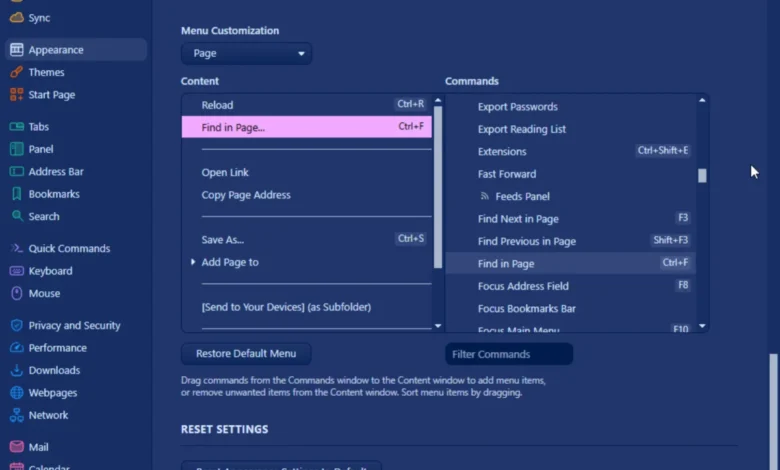
Users can streamline these menus by navigating to Vivaldi Settings > Appearance, locating the "Menu Customization" section, and selecting specific environments such as the "Page" context menu. Unwanted commands can be permanently removed by right-clicking them and selecting "Delete," while frequently used utilities—such as "Find in Page"—can be injected directly into the primary menu tree. Furthermore, users can insert visual separators, subfolders, and reordered command lists. Should customization efforts become overly complex, the browser provides a failsafe "Restore Default Menu" button to revert all interface modifications instantly.
Advanced Keyboard and Mouse Control Paradigms

For individuals experiencing repetitive strain injuries or those who simply wish to minimize reliance on physical pointing devices, Vivaldi integrates deep accessibility and navigation mechanics. Caret browsing, activated globally via Shift-F7, introduces a flashing text cursor onto any standard webpage. This enables users to highlight text, copy snippets, and navigate hyperlinks entirely through the directional arrow keys, mirroring the text-editing experience found in standard word processors like Microsoft Word or Google Docs.
Complementing keyboard accessibility is Vivaldi’s sophisticated Mouse Gestures engine. By navigating to Vivaldi Settings > Mouse, users can inspect and define custom gesture mappings. Holding down the right mouse button while executing a specific directional stroke—such as drawing a quick horizontal line or a checkmark—triggers complex browser operations like closing tabs, navigating back in history, or reopening recently closed windows. This gesture-driven workflow significantly accelerates repetitive browsing tasks for mouse-centric users.
Optimizing System Performance and Resource Management
As web applications grow increasingly resource-intensive, browser memory management has become a critical factor in overall system stability and laptop battery longevity. Vivaldi incorporates robust native performance controls to mitigate hardware drain. Located under Vivaldi Settings > Performance, the browser features dedicated Energy Saver and Memory Saver toggles.
The Energy Saver mode can be configured to activate automatically when a laptop’s battery drops to 20% or lower, curbing background script execution and visual rendering loads to extend operational runtime. Simultaneously, the Memory Saver feature offers balanced and aggressive savings profiles that automatically unload inactive tabs from system RAM. This prevents memory leaks from degrading overall system performance while preserving battery life during extended mobile computing sessions.
Finally, for users who rely on real-time data feeds, news monitoring, or social media dashboards, Vivaldi eliminates the need for third-party refresh extensions. By right-clicking any active tab and selecting "Periodic Reload," users can assign custom refresh intervals ranging from every minute up to ninety minutes. This native automation ensures that dashboards remain perpetually up to date without manual intervention, cementing Vivaldi’s reputation as one of the most functionally complete and customizable productivity environments available in the modern software landscape.