The Ultimate Guide to Scheduling TikTok Posts: Native Features, Third-Party Tools, and Best Practices

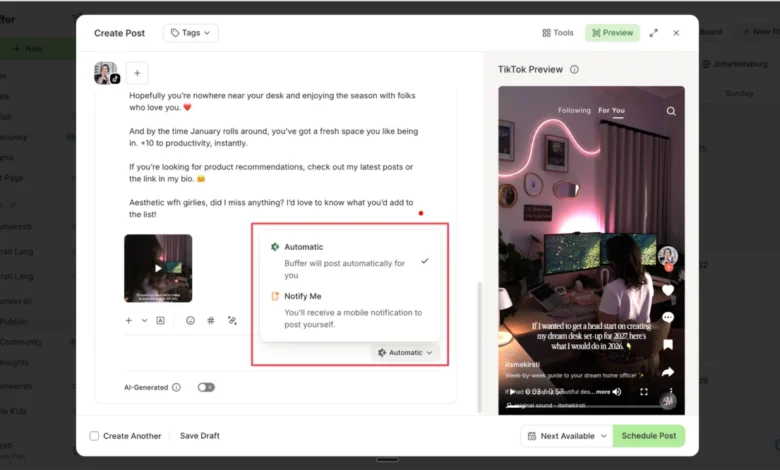
Maintaining a consistent publishing cadence on TikTok is widely recognized as one of the most effective strategies for algorithmic growth, yet it remains one of the hardest operational hurdles for content creators and brands alike. Between brainstorming, high-production filming, dynamic editing, and keyword optimization, the final step—hitting publish at the optimal time—frequently falls by the wayside. Fortunately, the platform and the broader social media management ecosystem have evolved to solve this friction point. Creators can now seamlessly schedule TikTok posts ahead of time, using either TikTok’s native scheduling infrastructure or third-party platforms like Buffer.
Understanding the mechanics, limitations, and strategic advantages of these different scheduling methods is critical for anyone looking to optimize their workflow and maximize audience reach in the current digital media landscape.
Core Mechanics of TikTok’s Native Scheduler
For years, the absence of native scheduling tools forced TikTok creators to rely on manual uploads or unverified third-party workarounds. TikTok eventually addressed this pain point by introducing scheduling capabilities across both desktop and mobile environments.
According to platform guidelines, any account—regardless of follower count—can schedule content natively. There is no longer a historical 10,000-follower minimum requirement, nor is a specialized Business account mandatory to access the feature. Creators can schedule single videos and photo carousels anywhere from 15 minutes to 30 days in advance.
However, native scheduling comes with strict operational guardrails. Once a video or photo post is successfully scheduled through TikTok Studio, it enters a locked state. Creators cannot edit the caption, swap out the video file, or adjust the scheduled publishing time. If an error is discovered after scheduling, the only remediation is to entirely delete the queued post and initiate the upload process from scratch. Furthermore, native scheduling adheres strictly to the local time zone of the creator’s device, requiring careful attention from multi-regional marketing teams.
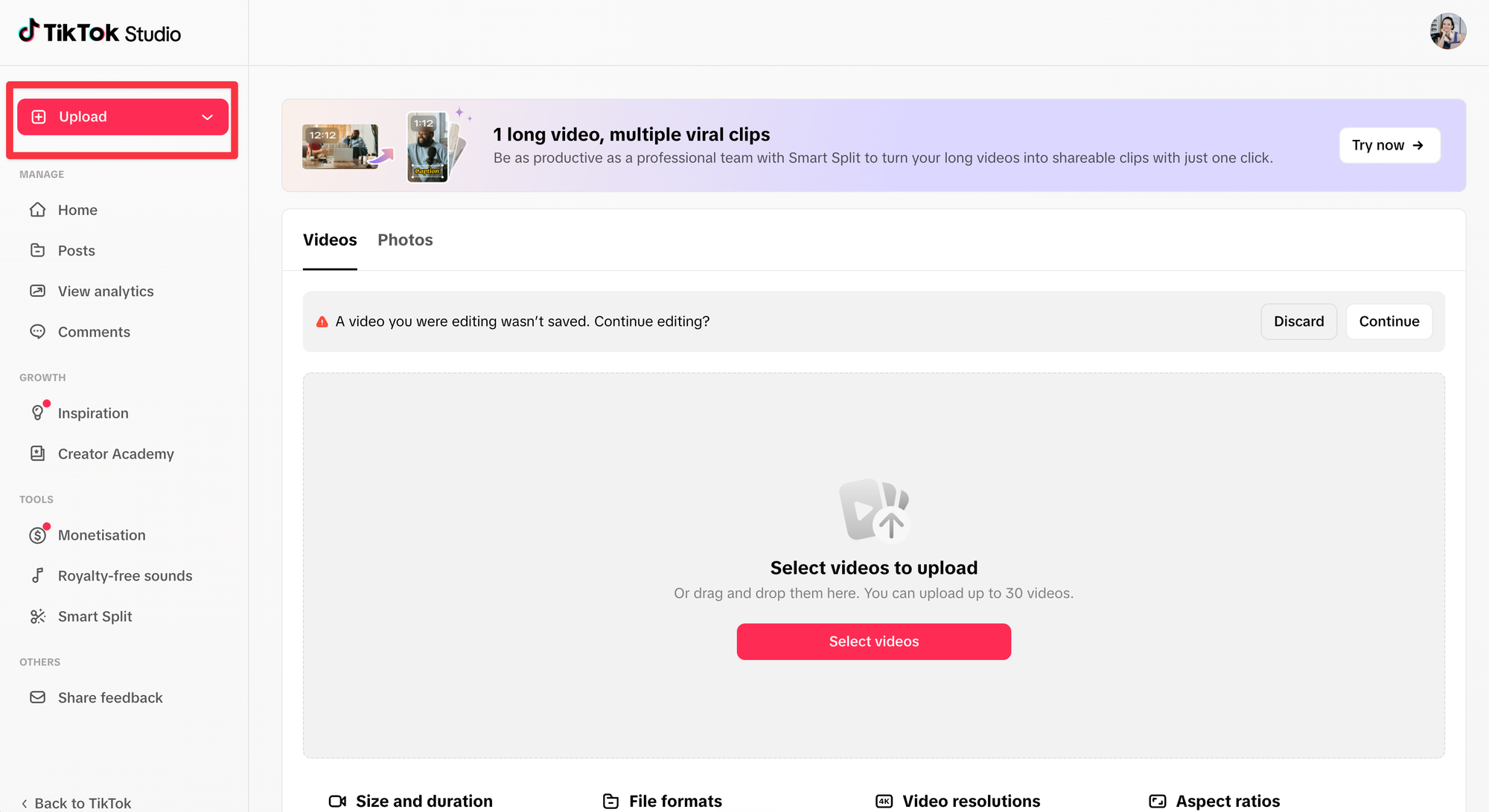
Step-by-Step: Scheduling on Desktop and Mobile
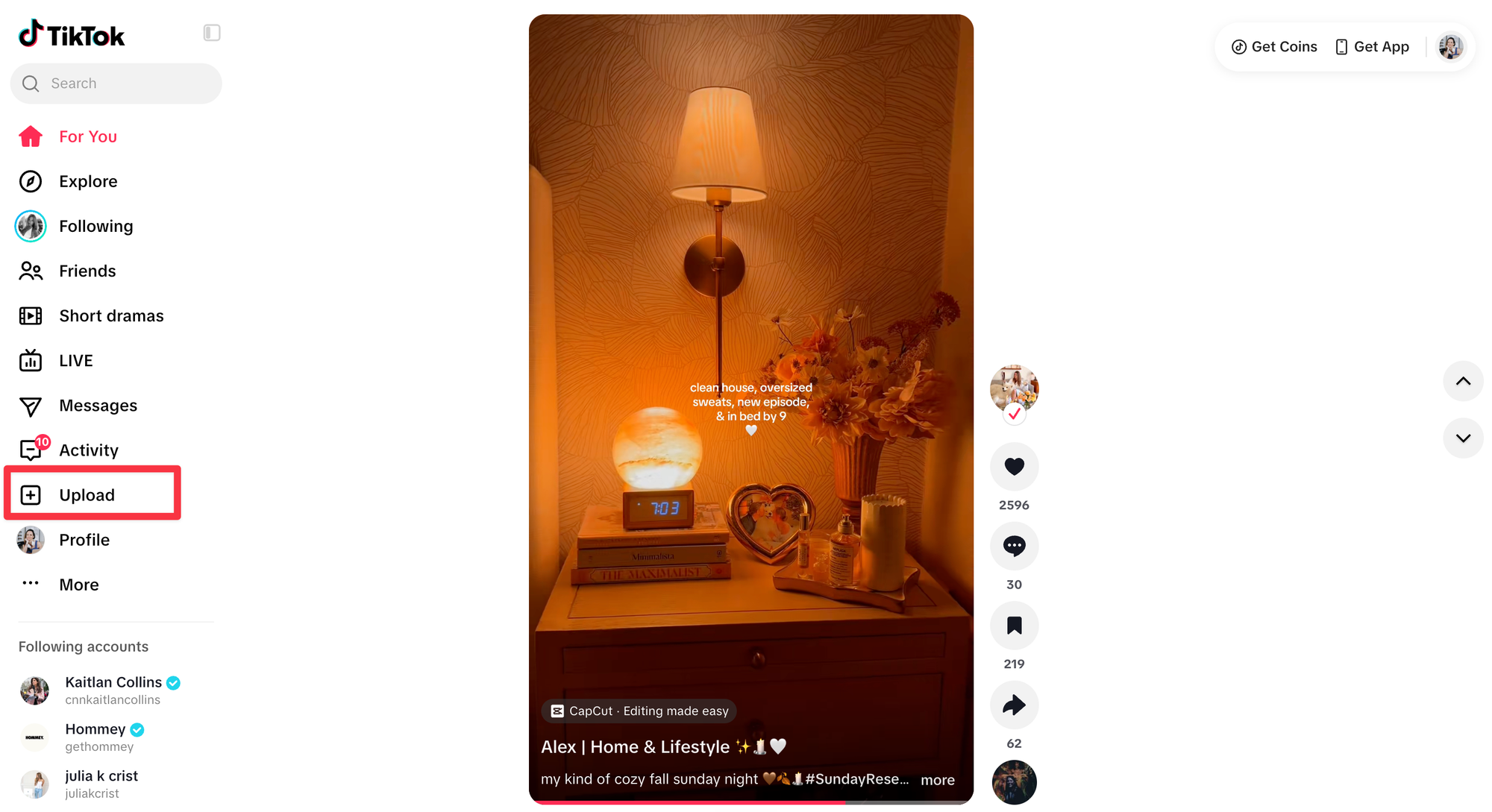
Executing a scheduled post natively requires navigating through TikTok Studio rather than the standard consumer-facing application interfaces.
On desktop, creators access TikTok Studio via web browsers at tiktok.com. After dragging and dropping video or photo assets into the upload composer, users complete the standard captioning, hashtagging, and thumbnail-selection steps. Near the bottom of the configuration interface, toggling the "When to post" setting from "Everyone" or "Now" to "Schedule" reveals a date and time picker. Confirming these selections locks the post into the queue.
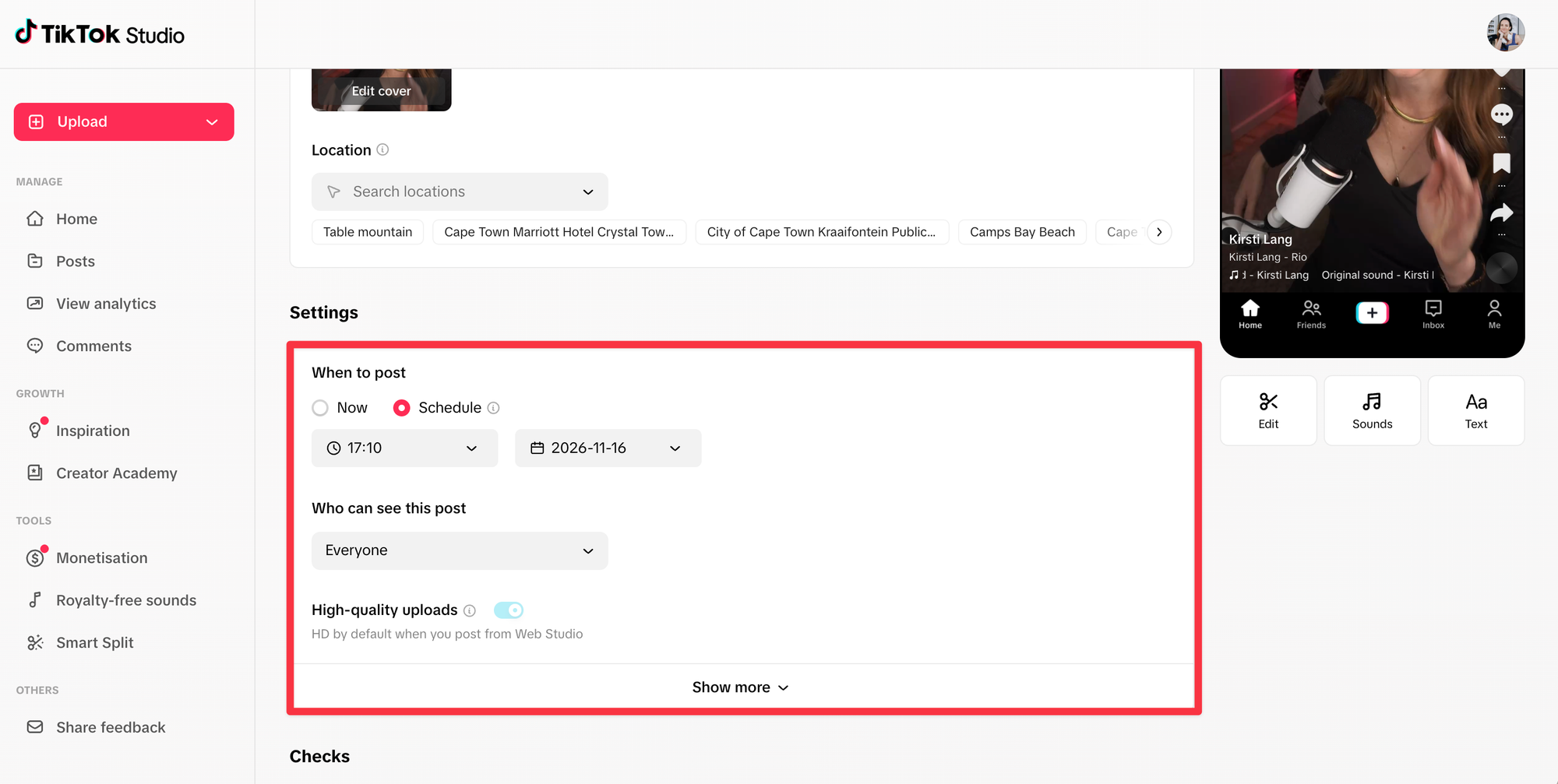
On mobile devices, scheduling is supported via the dedicated TikTok Studio application available on iOS and Android app stores, rather than the primary TikTok application. The upload workflow mirrors the desktop experience: creators upload media, draft accompanying copy, select the schedule toggle, and designate the exact minute and hour for release.
Leveraging Third-Party Tools: The Buffer Alternative
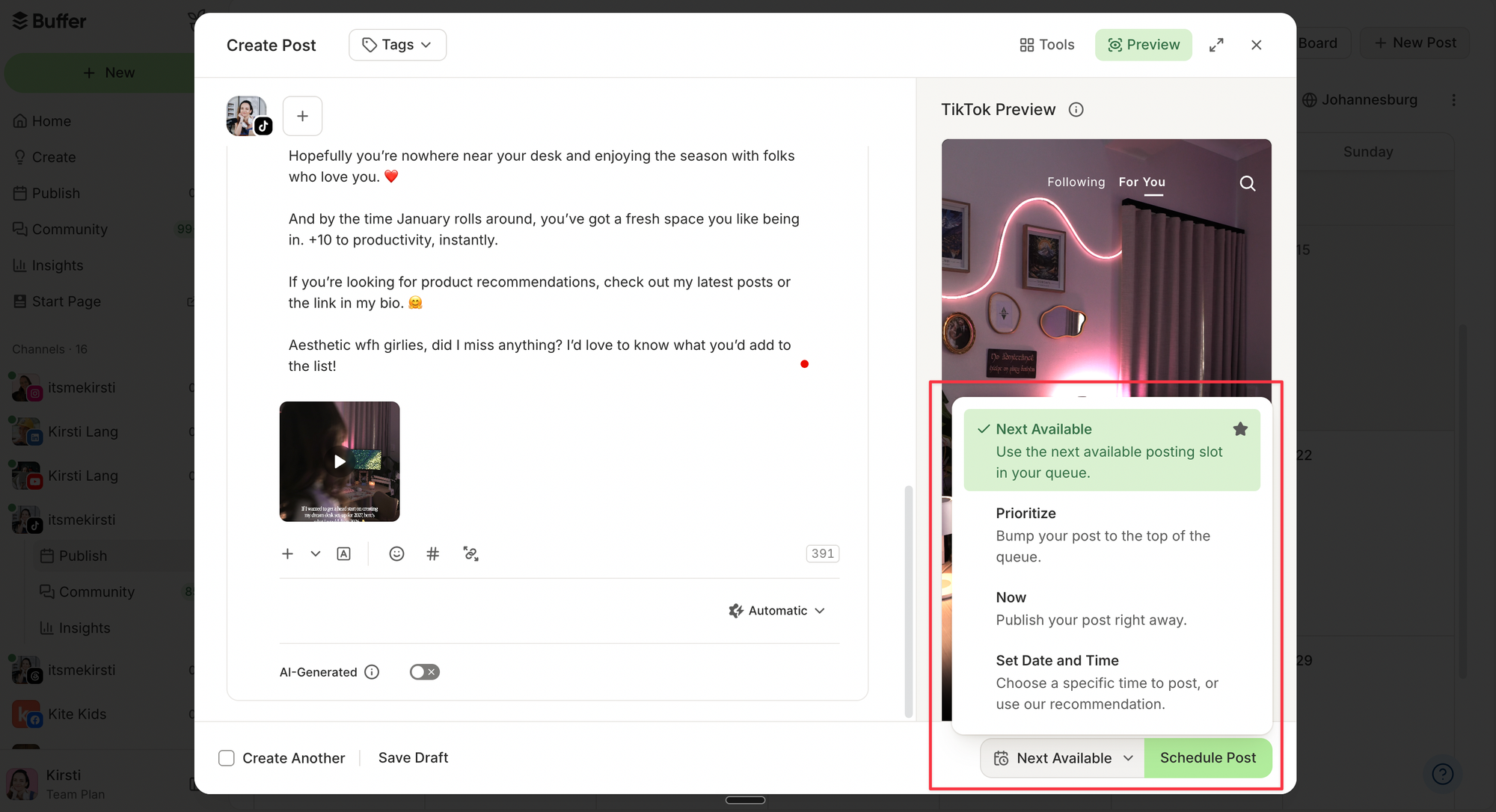
While native tools suffice for basic, single-platform publishing, professional creators and marketing agencies often require advanced features that native apps lack. Third-party social media management platforms, such as Buffer, offer robust alternatives designed to streamline cross-platform publishing and campaign management.
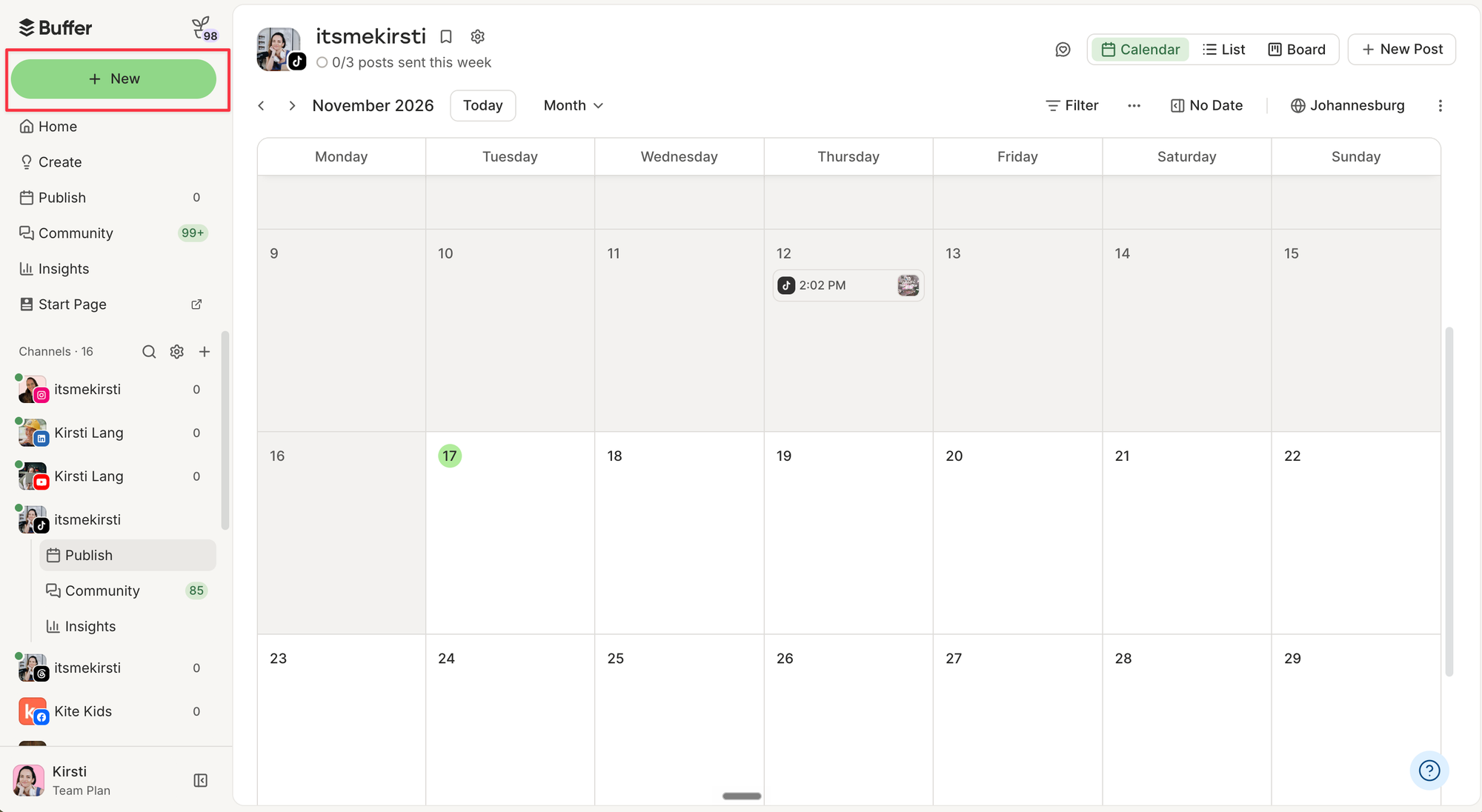
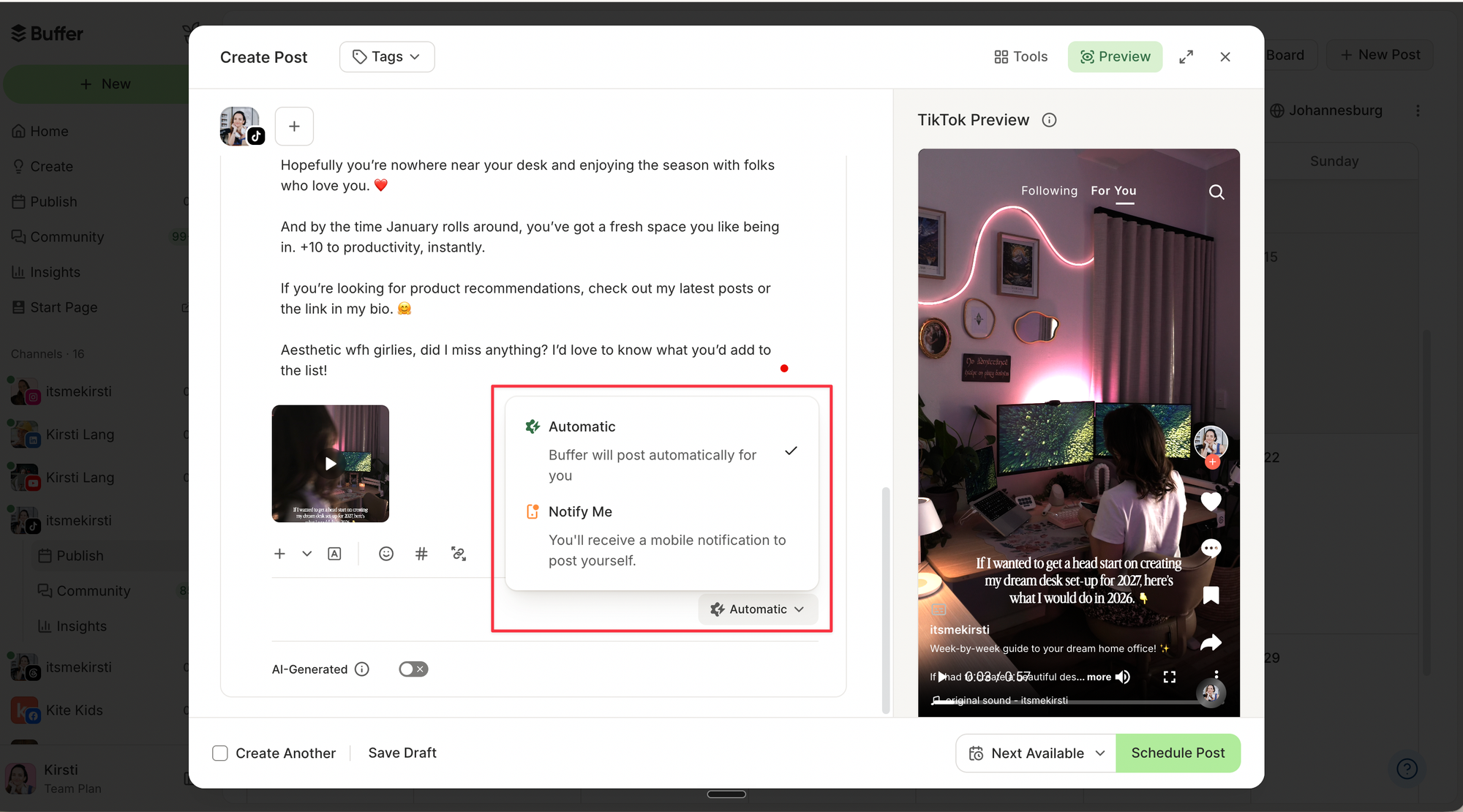
Utilizing a third-party scheduler bypasses several of TikTok’s native restrictions. For instance, Buffer removes the 30-day scheduling ceiling, allowing brands to map out quarterly campaigns far in advance. It also provides crucial editing flexibility: unlike native posts, items queued in Buffer can be modified, re-captioned, or rescheduled at any point up until the exact moment of publication.
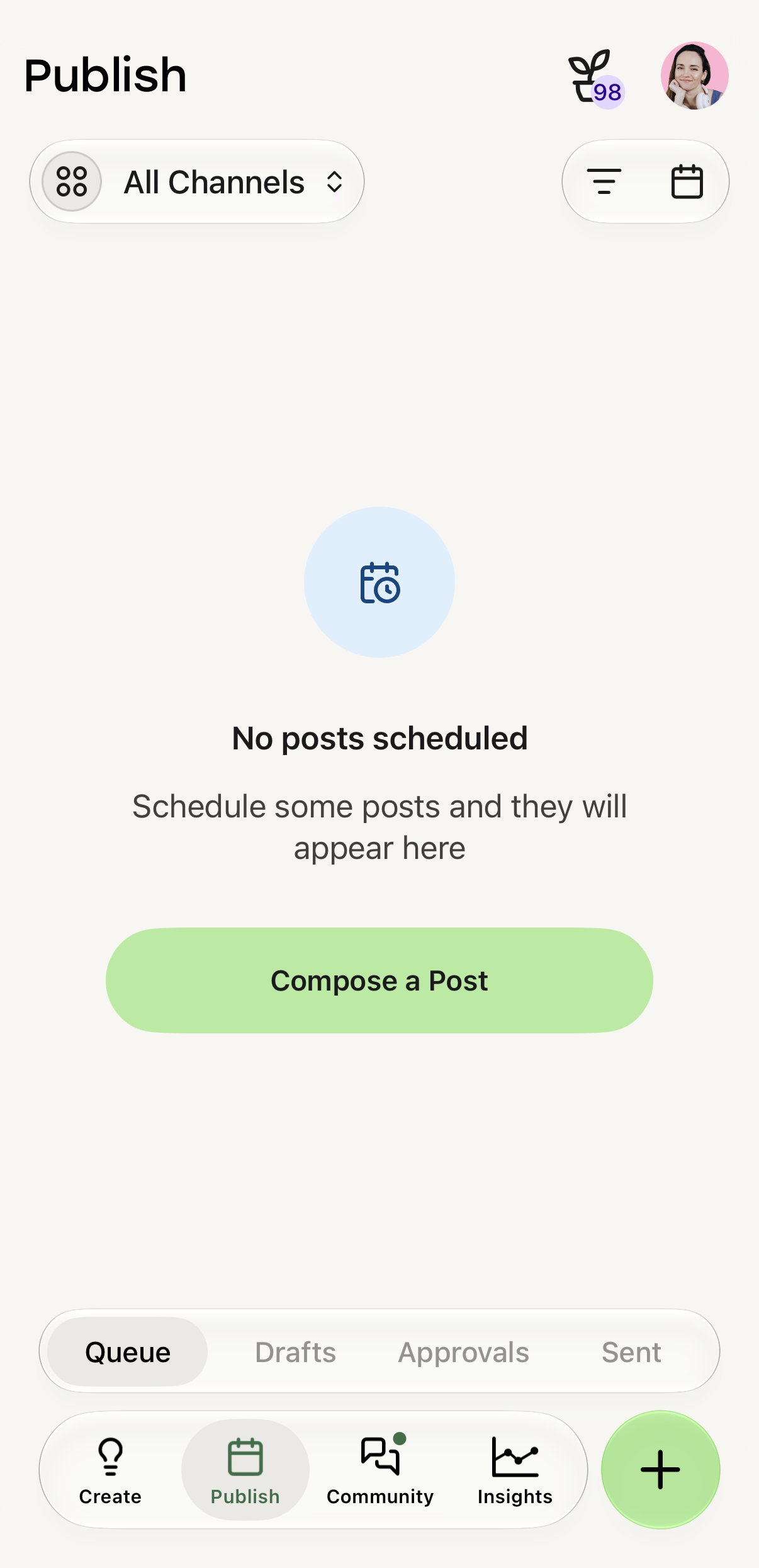
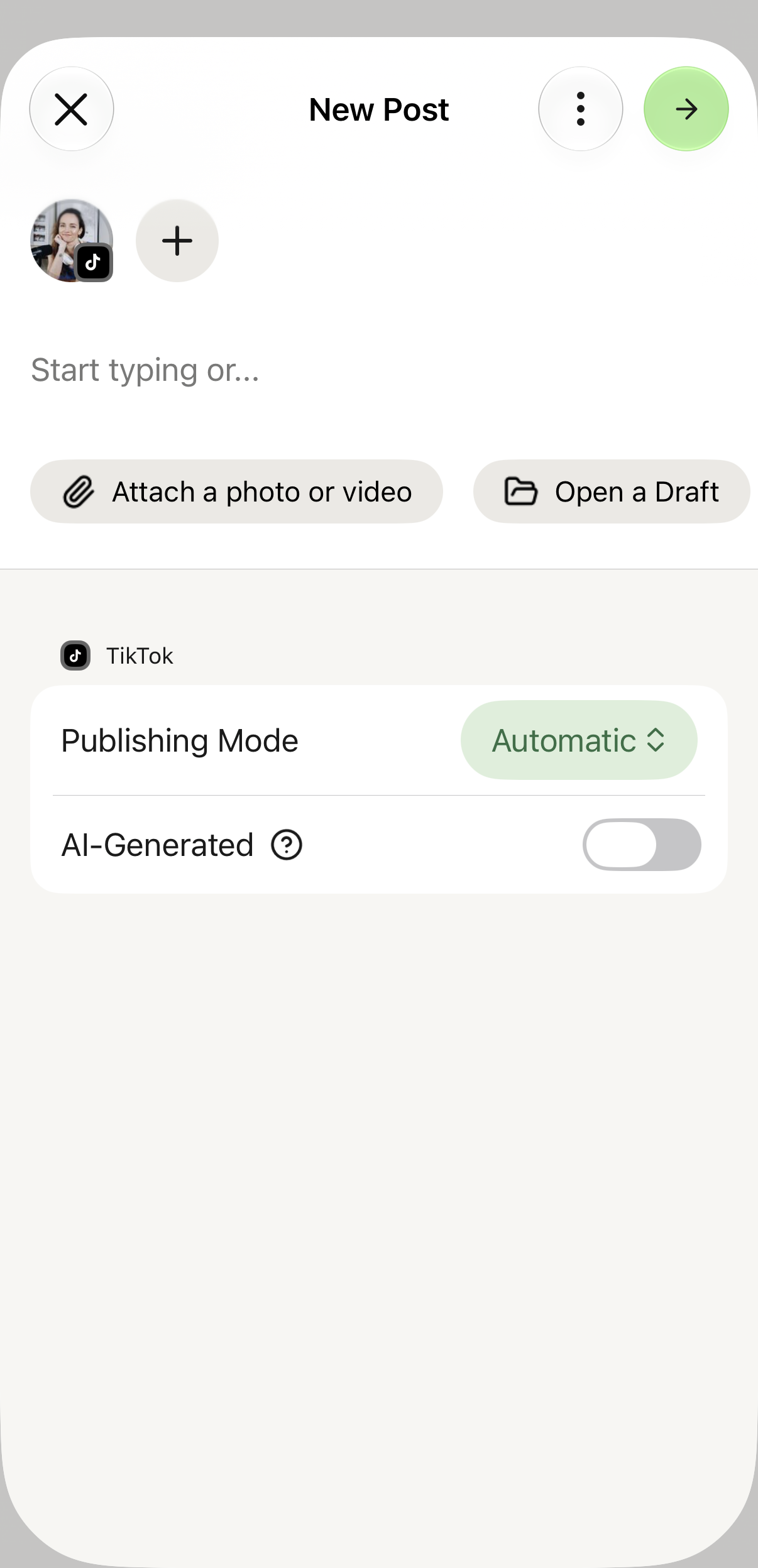
Perhaps the most significant advantage of third-party integration is centralized crossposting. Rather than manually uploading video assets to TikTok, Instagram Reels, and YouTube Shorts individually, creators can upload a piece of media once, tailor platform-specific captions, and distribute it across multiple networks simultaneously. Buffer offers this capability through both its web dashboard and its dedicated mobile apps, operating under a tiered model that includes free options for smaller creators as well as advanced enterprise features.
Managing Photo Carousels and Formats
TikTok’s push into multi-image formats—often referred to as photo posts or carousels—has provided creators with new avenues for engagement. Both native tools and external software accommodate this format, albeit with distinct parameters.
Native TikTok Studio permits the scheduling of photo carousels containing up to 35 individual images. Conversely, third-party applications like Buffer currently cap image uploads at 10 files per post via their web interface, with automatic conversion protocols for formats like PNG or HEIC into optimized JPG or WebP files. Cross-platform strategists generally favor third-party tools for photo posts specifically because carousels can be deployed simultaneously to Instagram and LinkedIn alongside TikTok.
Troubleshooting Missing Schedule Options
Creators occasionally report that the scheduling toggle fails to appear within their interface. In the vast majority of cases, this omission stems from user error regarding application versions or platform environments.
The scheduling function is intentionally isolated within TikTok Studio and does not reliably appear in the standard consumer mobile app interface. Creators attempting to schedule via mobile must download the standalone TikTok Studio app. Additionally, attempting to schedule content less than 15 minutes into the future, or selecting a date exceeding the 30-day window, will automatically suppress the scheduling option. Ensuring applications are updated to the latest version usually resolves persistent interface anomalies.
Strategic Best Practices: Maximizing Algorithmic Reach
Automating the publishing process solves the logistical challenge of consistency, but true audience growth requires strategic timing and community engagement. Industry analysis and platform analytics indicate that the timing of a post directly influences early algorithmic momentum.
Creators should consult their native TikTok Studio analytics to identify precisely when their unique follower base is most active. The "Viewers" tab within the analytics dashboard provides hourly breakdowns of audience activity across the week, enabling creators to align their automated schedules with peak engagement windows. For new accounts lacking historical data, macro-level industry studies—such as analyses of millions of global TikTok posts—suggest that weekends, particularly Sunday mornings and early afternoons, frequently yield high baseline engagement.
Furthermore, because scheduled posts release autonomously without the creator necessarily present, community management requires proactive workflows. Early comments serve as a critical signal to the TikTok recommendation algorithm. Utilizing unified community inboxes allows creators to monitor and respond to comments instantaneously across multiple social networks as soon as a scheduled video goes live, fostering the rapid interaction loops necessary to maximize algorithmic distribution.